CertAlert Quick Start Guide
Get up and running with CertAlert in minutes on Windows, Linux, or macOS.
This guide helps you install and run CertAlert for the first time. Need assistance? Email [email protected] and we'll help you get started.
System Requirements
Windows:
Windows 10/11, Server 2016+
Linux:
64-bit, glibc 2.17+
macOS:
macOS 13 or later
Dependencies: None — CertAlert is self-contained.
2Extract the Download
Extract the ZIP file to a dedicated folder:
- Right-click on the ZIP file
- Select "Extract All..."
- Choose a destination (e.g.,
C:\CertAlert)
Double-click the ZIP file, or:
3Run Your First Scan
Open a terminal in the CertAlert folder and run a quick scan:
First Run: EULA Acceptance
On the first run, the End User License Agreement will be displayed. Please read it carefully and accept to continue.
Scan multiple targets at once:
4Set Up Regular Monitoring
For scheduled scans, create a servers.txt file listing your hosts:
# servers.txt - one entry per line
example.com
mail.example.com:587
192.168.1.10
10.0.0.1-10
[2001:db8::1]:443
Then run CertAlert without arguments to use the server list:
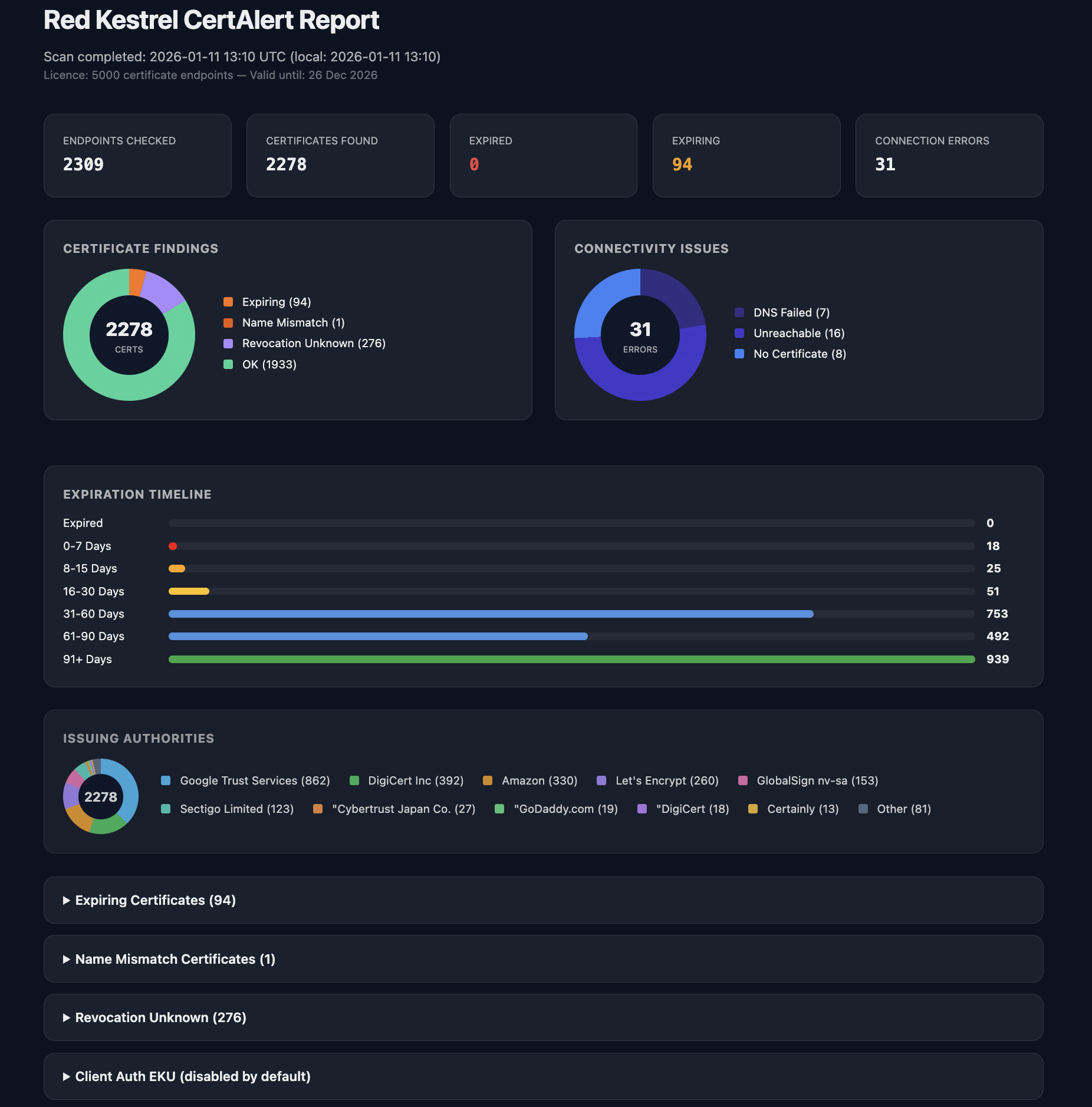
CertAlert generates CSV, PDF, and HTML reports in the Reports folder.
5Configure Email Alerts (Optional)
Edit config.json to enable email notifications when issues are detected:
{
  "smtp": {
    "host": "smtp.example.com",
    "port": 587,
    "username": "[email protected]",
    "from": "CertAlert <[email protected]>",
    "enable_starttls": true
  },
  "alerts": {
    "enabled": true,
    "recipients": ["[email protected]"]
  }
}
Set the SMTP password (Windows only — stored securely using DPAPI encryption):
Email reports: Add a reports section to receive scheduled summary emails with CSV attachment:
"reports": {
  "enabled": true,
  "recipients": ["[email protected]"],
  "frequency_hours": 24
}
Licence Activation
After purchasing, you'll receive a .lic licence file. Place it in the CertAlert folder to activate your licence.
CertAlert
Self-contained, cross-platform certificate monitoring with HTML reports and IPv6 support.
Get CertAlert Now